Convert JPEG to PDF on Mac
Select the JPEG files in Finder, press ⌥ F, choose PDF and press Return. FileFlip saves each PDF next to its original and works without an internet connection.
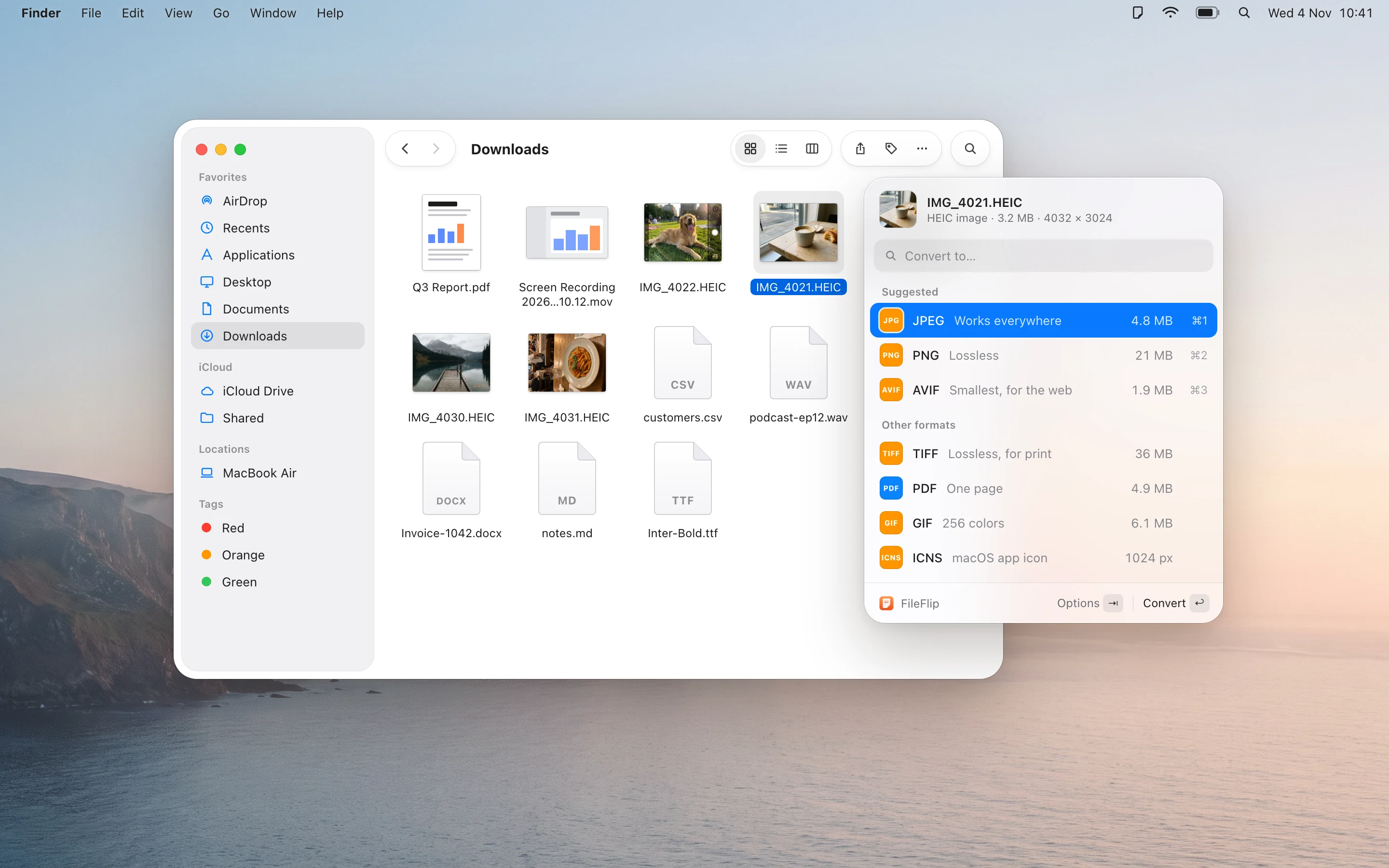
How to convert JPEG to PDF with FileFlip
Select the JPEG files
In Finder or on the Desktop. One file, or a whole folder with ⌘ A.
Press ⌥ F
FileFlip opens next to the selection and lists the formats it can make from JPEG. Type “PDF” to jump to it.
Choose PDF and press Return
The PDF files appear next to the originals with the same names. The JPEG files stay as they are.
JPEG and PDF
JPEG is lossy and has no transparency, so it’s a poor fit for graphics, screenshots or files you’ll keep editing. A PDF looks the same on every device and is the safest way to send something to be read or printed.
What changes when you convert
- The image is placed on a PDF page, which is handy for sending, printing or attaching to forms.
| Property | JPEG | |
|---|---|---|
| Full name | Joint Photographic Experts Group | Portable Document Format |
| Made by | Joint Photographic Experts Group | Adobe; an ISO standard since 2008 |
| Introduced | 1992 | 1993 |
| Best for | Photos you want to send, upload or print anywhere | Sharing, printing and archiving documents |
| Opens in | Every computer, phone, browser and photo app | Every browser, Preview, Acrobat and every phone |
| File extension | .jpg, .jpeg | |
| In FileFlip | Opens and saves | Opens and saves |
Other ways on a Mac
For one file now and then you may not need FileFlip. These work with what’s already on your Mac.
Preview
Open the JPEG in Preview, choose File → Export, pick PDF from the Format menu and click Save. For several files, open them together, select all thumbnails in the sidebar and choose File → Export Selected Images.
Good for a few files now and then.
Terminal
The sips command converts images in place or into a new file.
sips -s format pdf photo.jpg \
  --out photo.pdf
Built into macOS and good for scripts. Run sips --formats to see what your macOS version can read and write.
Questions about JPEG and PDF
Can I convert many JPEG files at once?
Yes. Select them all in Finder, press ⌥ F and choose PDF. Progress moves to the menu bar, so you can close the panel and keep working.
Where is the PDF file saved?
Next to the original, with the same name and the .pdf extension. The JPEG file isn’t changed. In Settings you can choose a different folder instead.
Can I convert PDF back to JPEG?
Yes, FileFlip converts PDF to JPEG as well.
Are my files uploaded anywhere?
No. FileFlip converts files on your Mac and works with the internet turned off.
Convert a whole folder of images at once
FileFlip also handles video, audio, PDFs, documents and data files. Requires macOS 14 Sonoma or later.
Coming soon for Mac